|
 Microsoft Corporation released Internet Explorer version 9 on March 14th, 2011. IE9 was a major update to this popular browser. They have since released IE10 and IE11 and you may get the update without even knowing it since Microsoft is pushing it out to most users as an automatic update.
For most users, OnDemand5.com and ShopKey5.com will work with IE9 or newer with the following conditions:
- Must use official released version of the browser, beta and release candidate versions will not work.
- Must run in compatibility mode.
- Must allow pop-ups for OnDemand5.com or ShopKey5.com.
- SVG viewer add-on may need to be reinstalled to view color wiring diagrams.
This page will continue to be updated as new information comes to light.
Follow the steps below to setup Internet Explorer 9 and newer to work with OnDemand5.com and ShopKey5.com. If you do encounter problems, please call our Technical Support group for assistance. Contact information is available on the right side of this newsletter.
Updated: 4/7/14
|
NEW PRODUCT AVAILABLE:
|
Current subscribers of OnDemand5.com and ShopKey5.com can now use the next generation product using your existing username and password. The new product works with Internet Explorer 8 or higher as well as Google Chrome and Firefox. Click here for more information.
|
|
IMPORTANT:
|
Some users have found that after following all the steps below that color wiring diagrams cannot be opened or that they do not print properly. We are looking into this but if you are concerned about this you may want to hold off installing Internet Explorer 9 or newer.
If you already have IE9 or newer and the color wiring diagrams do not work or print properly, you can go into the setup portion of OnDemand5 or ShopKey5 and under "Configuration" select "Use black and white diagrams". You can also go back to the previous version of Internet Explorer but you may need to reinstall the SVG viewer add-on.
Click here for instructions from Microsoft on uninstalling IE9 and returning to the previous browser version.
|
Step 1. Setting Compatibility Mode
NOTE: This is the cause of most issues. If you get a blank login screen, this will fix it.
Note: With the release of IE11, the compatibility button may not show in the address bar. Click here for instructions for IE11.
IE9 and IE10 Compatibility Mode
In order to use OnDemand5.com or ShopKey5.com in Internet Explorer 9 or 10, you need to turn on Compatibility Mode. At the top of the browser window, there is a small icon on the right side of the address bar. It looks like a torn piece of paper. If it is gray, it is turned off. Click on the icon to turn the mode on. It will turn blue. Once you've done this you can click on the "Login Now" button to start the program. You can also turn it on at the login screen.

IE11 Compatibility Mode
To set compatibility mode in IE11 you will go to the tools menu.
- Open the tools menu by clicking on the gear symbol at the top right of the browser window.
- From the menu, click on Compatibility View settings.
- Add the web site to the list of sites needing compatibility view. This will ondemand5.com or shopkey5.com depending on which you use.
- Close the compatibility view settings window.
- You may need to restart the browser to get it to take effect.
Step 2. Installing SVG Viewer Add-on
To view color wiring diagrams in OnDemand5.com or ShopKey5.com you need to enable the SVG viewer add-on. If you are using a new computer with Internet Explorer 9 or newer, the system will prompt you the first time you try to open a color wiring diagram to install the add-on. Click here if you don't get prompted to install the SVG viewer.
Select a vehicle you know has color wiring diagrams, for example select 2007 Acura RDX. Navigate to the Wiring Diagrams article and then select any wiring diagram in the article. Click "OK" on the message that pops up stating that the software required to view color wiring diagrams has not been installed.

Click "Run" on the yellow box that pops up at the bottom of the browser. You may get a message from your system asking if you want to allow this software to run. Click yes.
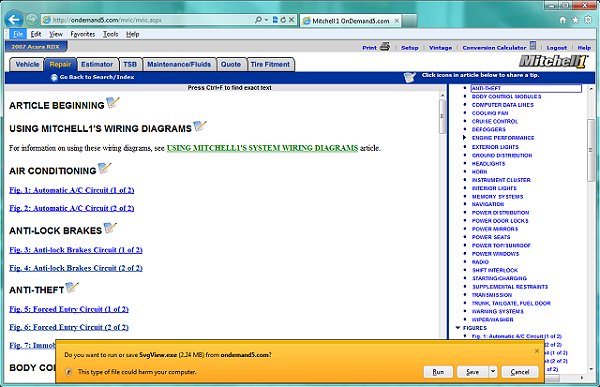
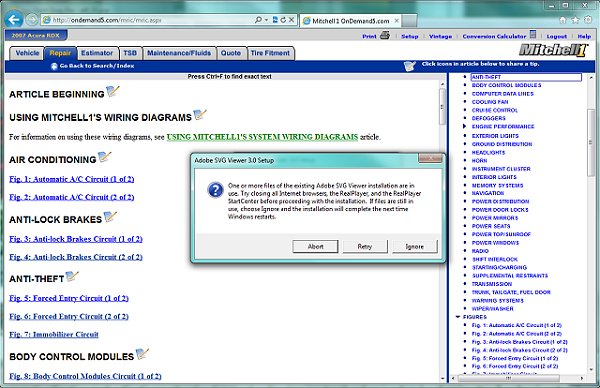
You may get a message saying you need to close the browser. Click on the browser window and close it. And then click the "Retry" button in this message. If you don't get an error message, try opening one of the wiring diagrams again. You should now be able to open them. You are now ready to start using the product in Internet Explorer 9 or newer. If you can't open the diagrams go to the next step.
Step 3. Reinstalling SVG viewer add-on.
If you installed Internet Explorer 9 or newer on a computer where you were previously running OnDemand5.com or ShopKey5.com, you will probably already have the Adobe SVG Viewer add-on installed. When you try to open a color wiring diagram and it does not display, you will need to uninstall the SVG viewer and then reinstall it.
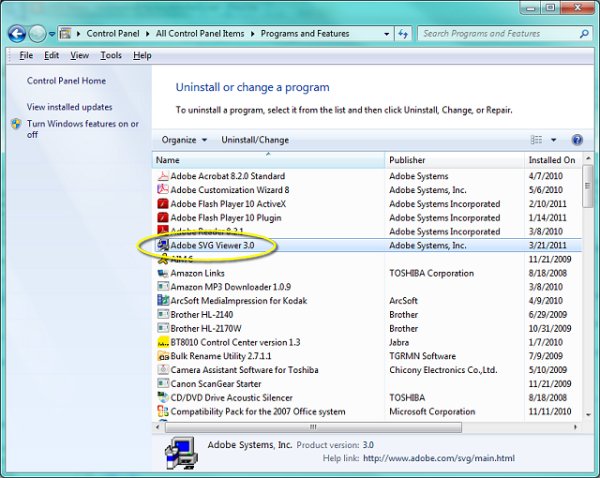
Click on the Windows Start button and then open the Control Panel (should be listed to the right of the list of recent programs). In the control panel, scroll down the page until you see "Programs and Features". Click on that link. This will bring up the list of installed programs.
Note: Windows 7 screens shown below.

From this list click on "Adobe SVG Viewer 3.0" and then click on "Uninstall/Change" on the toolbar above the list. A message will pop asking if you're sure you want to completely remove the viewer. Click the "Yes" button. Once this is complete, you will need to install the viewer again. Click here for the instructions on installing the viewer.
Click here for the OnDemand5/ShopKey5 Newsletter
|
 |
|
|
Can't Log In?
Turn On Compatibility Mode in Internet Explorer
You must turn on Compatibility Mode in Internet Explorer in order to use OnDemand5.com or ShopKey5.com. If you got to the login page and it was missing the boxes for user name and password, this is the problem.
Click here to learn how to turn on compatibility mode in IE9 and IE10.
Click here to learn how to turn on compatibility mode in IE11.

ProDemand and ShopKey Pro are the replacement products for OnDemand5 and ShopKey5 respectively. Soon all customers will be transitioned to these new products but you can use them now with your current username and password. They work with Internet Explorer 8 and above as well as with FireFox and Google Chrome browsers.
Click here for more information on how to get started.
|